

With MoeGo’s upcoming Message Compliance update, your email and SMS communications will follow industry-standard regulations. This helps protect your business while ensuring pet parents receive messages in the way they prefer.
This guide explains:
- What’s changing with Message Compliance
- How existing client settings are handled
- How to opt in existing clients
- How to opt in new clients after launch
What’s Changing with Message Compliance
The Message Compliance feature has been released on January 5, 2026.
When the feature goes live:
- All existing client message settings will be preserved initially
- Messages will be categorized as either:
- Service-related, or
- Marketing-related
To meet compliance requirements, MoeGo will provide a 3-month transition period for collecting opt-in authorization from pet parents
Please note that this 3-month period is not a hard cut-off and is intended to give businesses sufficient time to transition smoothly.
What happens during and after the transition period
🟢 During the transition period (starting Jan 5)
- Your current marketing message settings will remain active
- You can continue communicating while collecting opt-in consent from pet parents
🔴 After the transition period (3 Month)
- Marketing-related messages will be automatically turned off
- This applies to pet parents who have not provided opt-in authorization
Affected marketing-related message include:
- Mass text messages
- Pet birthday reminders (SMS / Email)
- Rebook reminders (SMS / Email)
- Auto review booster messages
- Abandoned booking recovery messages
- Marketing email subscriptions
- Workflow Campaigns (Beta) (SMS / Email)
Service-related messages are not impacted.

What is Message Compliance?
Message Compliance refers to the legal requirements businesses must follow when sending SMS and email messages.
In the U.S., this includes regulations such as:
At a high level, compliance means:
- Clients must give consent before receiving marketing messages
- Every message must include a clear opt-out option
- Unsubscribe requests must be honored immediately
- Notification settings cannot be changed without client authorization
👉 For more details about the Compliance feature, click here.
We’re actively working to bring these features to the mobile app and expect them to be available by the end of January.
How to opt in Existing Clients
You can collect opt-in authorization from existing clients using any of the methods below.
Option 1: During a call-in or walk-in visit
When a client calls in or walks into your business to schedule an appointment, you can ask them directly whether they’d like to receive notifications from your business.
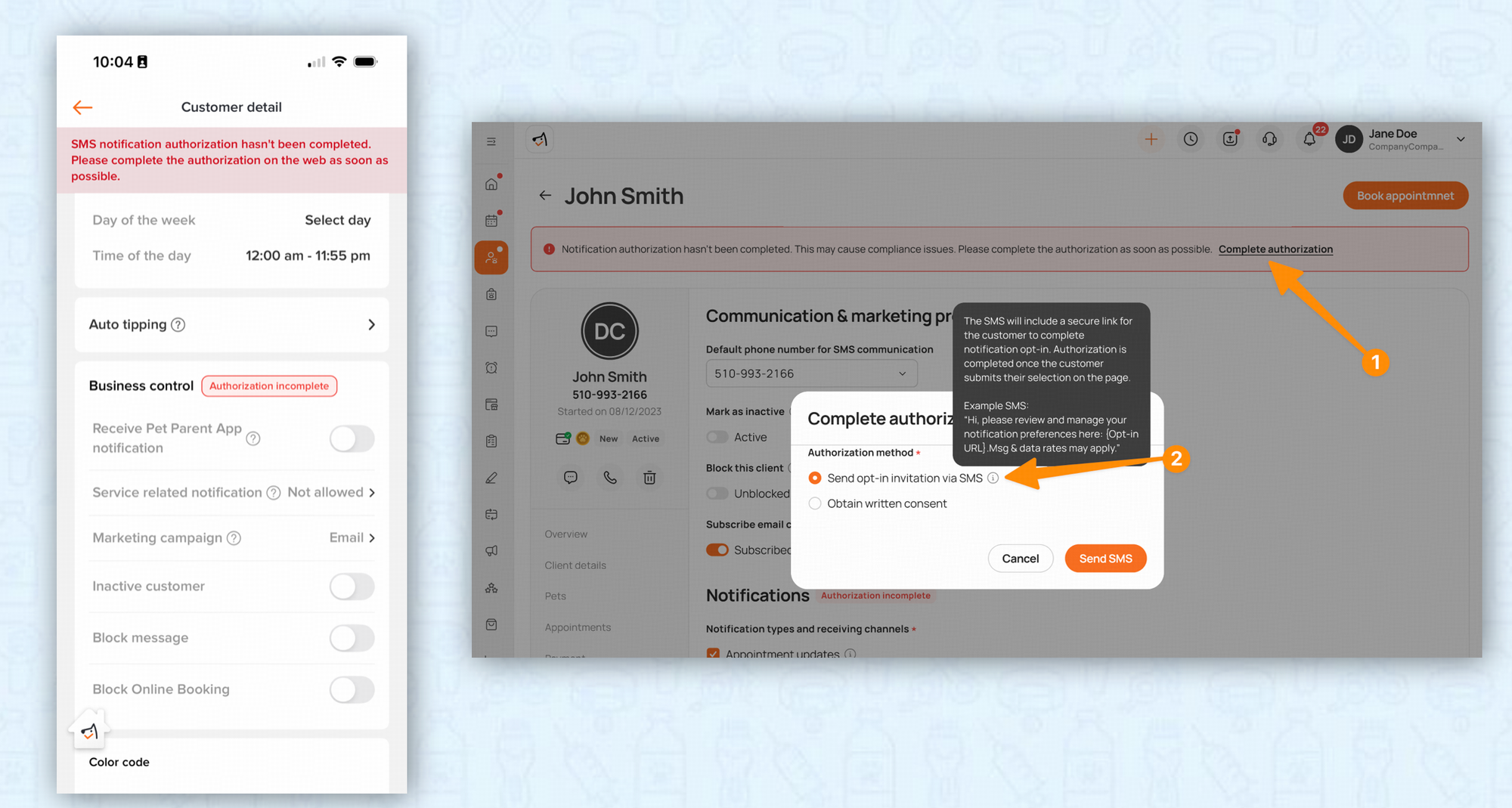
Step 1: Open the client profile
- Go to the client profile
- If the client’s notification authorization is incomplete, you’ll see a banner indicating that authorization has not been completed
- Click Complete Authorization to proceed
Step 2: Send an opt-in invitation via SMS
In the authorization pop-up:
- Select Send opt-in invitation via SMS
- Click Send SMS
Alternatively, you can access the same option by going to Client Profile > Settings > Notification Authorization, then selecting Complete.

Alternatively, you can send the invitation link directly through the Message Center.

Or include the invitation link in your email campaigns or mass messages, as shown below.

Step 3: Client receives and completes the opt-in
The client will receive a one-time SMS with an opt-in link, for example:
“Hi, please review and manage your notification preferences here: {Opt-in URL}. Msg & data rates may apply.”
When the client clicks the link, they can choose their notification preferences:
- Service-related messages
Under “Stay updated about your pet’s visit”, select “Yes, text me appointment updates” - Marketing messages and emails
Under “Get offers, treats, and news”, select:- “Yes, email me offers & perks”
- “Yes, text me offers & perks”
After selecting their preferences, the client clicks Confirm to complete authorization.

Step 4: Authorization is completed and recorded
Once the client submits their preferences:
- The Setting> notification section under client profile will show Authorization Completed

- The action will also be recorded in the History Log, for example:
“Notification authorization completed by client”

What to expect next
- Service and marketing notifications will be adjusted follow the preferences selected by the client
- Clients who have not complete authorization during the transition period will be opted out of marketing SMS notifications after the transition period ends
Option 2: Upload existing authorization records
If you already have signed consent forms or documented authorization from a client, you can record this authorization directly in MoeGo.
Step 1: Manually Adjust the preference
- Ask pet client their preference for service and marketing related message/email in person.
- Adjust the service and marketing preference setting according to the authorization client have provided.

Step 2: Select “Obtain written consent”
- Go to the client profile, in the Complete authorization pop up
- Select Obtain written consent
Step 3: (Optional) Upload authorization records (coming soon in future release after 1/5)
You may upload existing authorization records for reference.
- Supported file formats: .csv, .xls, .xlsx
- Uploading a file is optional
- You can proceed without uploading any document if needed
- Uploading consent records to MoeGo is optional.
- You may keep previously collected consent records or authorization history on file outside of MoeGo for your own reference.
- However, if you do not have prior authorization and still mark a client as “Obtained written consent”, this would not be compliant.
- We recommend retaining consent records whenever possible in case verification is needed later.
Step 4: Complete authorization
- Click Complete to finish the authorization process
- Once completed:
- The client’s notification authorization status will update to Completed
- The action will be recorded in the History Log for auditing purposes

Option 3: During a scheduled appointment (Coming soon after 1/5)
You can collect opt-in authorization when a client arrives for their scheduled appointment.
Where you’ll see the authorization reminder
If the client’s notification authorization is incomplete, you’ll see an authorization reminder displayed directly on the appointment.
This reminder may appear:
- On the appointment details page
- During Check-in
- During Check-out, in the Review & Confirm pop-up

How to complete authorization during the appointment
Option A: Send an opt-in invitation via SMS
- Click Complete Authorization from the appointment or alert
- Select Send opt-in invitation via SMS
- Ask the client to open the link and complete their notification preferences on their phone
This follows the same SMS opt-in flow used for call-in or walk-in clients.
Option B: Upload written consent and update preferences manually
If the client provides written consent:
- Select Obtain written consent
- (Optional) Upload the consent record
- Click Complete to finish authorization
- Manually adjust the client’s notification preferences in their profile
When authorization can be completed
You can complete authorization with the client at either:
- Check-in, or
- Check-out
This allows you to confirm notification preferences at a natural point in the visit, without interrupting the service.


Option 4: Via Online Booking
Clients can opt in to notifications directly while booking an appointment online.
How the opt-in works
- When a client logs in to the Online Booking portal, a notification pop-up will appear asking them to enable:
- Service-related messages, and/or
- Marketing-related messages/email
- The client can review their options and choose whether to opt in before continuing with the booking.
If the client does not opt in
- If the client chooses not to opt in during this step, the notification pop-up will continue to appear the next time they log in.
- This ensures clients have multiple opportunities to review and update their notification preferences.

What happens after opt-in
- Once the client completes their selection, their notification preferences will be saved.
- The client’s authorization status will update to Completed, and future messages will follow the selected preferences.
Please refer to more detail here in Pet parent Opt-in Via Online Booking.
How to opt in New Clients
When a new client logs into Online Booking for the first time, a notification preference pop-up will appear before they submit their booking request.
- The pop-up asks the client to opt in to:
- Service-related notifications
- Marketing-related notifications
- This flow is the same as the opt-in experience for existing clients.
- Clients may choose to opt in or skip this step and continue booking.
📌 Once submitted, MoeGo automatically saves the client’s notification preferences.
👉 For more details, see Pet Parent Opt-In via Online Booking.
Option 2: Intake Forms
You can collect opt-in authorization through intake forms.
Step 1: Enable marketing policy fields
- Go to Intake Forms → Settings
- Toggle ON Marketing Policy fields for all intake forms
Step 2: Client submits consent
- When the client checks the marketing policy box and submits the intake form:
- Once the business accepts the intake form or merges it into an existing client profile
- MoeGo will automatically update the client’s marketing-related notification preferences
👉 For more details, see Marketing Policy Compliance via Intake Forms.

Option 3: Call-in or Walk-in Leads
For clients who call in or walk in without using Online Booking:
Step 1: Set default preferences for new clients
- Go to Settings → Communication → Preferences
- Configure your default notification preferences for new clients
These defaults will be pre-selected when creating a new client or lead profile.

Step 2: Obtain consent and complete authorization when creating profile (coming soon after 1/5)
- Ask for consent verbally, following the same process used for existing clients
- On the Create Client or Create Lead page:
- Select the appropriate notification preferences
- Complete the authorization directly by uploading the authorization document and adjust the notification setting, or
finish creating the profile, and send a one-time SMS opt-in invitation from the profile.

👉 For more details, see Notification Compliance Via Client Profiles
Your Action Items
To stay compliant and ensure uninterrupted communication with pet parents, we recommend taking the following actions:
- Start collecting opt-in authorization from existing clients as early as possible
This helps avoid last-minute disruption when the transition period ends. - Use Online Booking and intake forms whenever possible
These tools allow clients to opt in themselves and significantly reduce manual work. - Clearly explain communication preferences to pet parents
Let them know what types of messages they’ll receive and how they can opt out at any time.
Steps to Streamline Your Future Workflow
To make compliance easier moving forward, we recommend setting up the following configurations:

1. Enable opt-out reply for SMS
Go to: Settings > Communication > Opt-out Reply
- Toggle Opt-out Reply ON
- Customize your opt-out reply message as needed
This ensures clients can easily unsubscribe by replying to your messages.
2. Set default notification preferences
Go to: Settings > Communication > Preferences
- Configure your default notification preferences for new clients
- Configure whether opt-out language (“Reply STOP to opt out”) appears in your
- Set these based on your local compliance requirements
3. Confirm SMS usage with opt-out prompt in auto messages
All auto messages sent from MoeGo will automatically include opt-out instructions:
- Service-related messages:
“Reply STOP to opt out” - Marketing-related messages:
“Reply STOPM to opt out”
⚠️ Important note:
Adding opt-out language may increase your SMS message length by approximately 20 characters. This may change how many SMS credits a message uses. Please plan your SMS usage accordingly.
4. Enable marketing policy in intake forms
Go to: Intake Forms > Settings, Toggle ON Marketing Policy
This allows new clients to review and consent to marketing communications during the intake process.
Best Practice Tip
Setting these configurations early helps ensure:
- New clients are compliant from day one
- Existing clients are transitioned smoothly
- Your team spends less time handling manual follow-ups
Frequently Asked Questions
Does the opt-in invitation SMS count as one-way or two-way message?
- The opt-in invitation SMS is one-way (auto message) and is considered a service-related message.
Is there a client filter to identify clients with incomplete or complete authorization status?
- Not yet. A client filter for authorization status (Complete / Incomplete) will be available in a future release after the January 5 launch.
Can I customize the opt-in message template?
- At this time, the opt-in message template cannot be customized.
Customization may be supported in future updates.
When obtaining written consent, do I need to upload a document?
- No. Uploading a document is optional.
You can mark the authorization as completed without attaching a file.
Can I opt in multiple pet parents at once?
- Currently, pet parents must be opted in one at a time within the system.
- However, if you have already collected valid customer consent (for example, through your own signed agreements) and need to opt in a large number of pet parents, bulk authorization may be available.
- In this scenario, your business will need to sign an agreement with MoeGo. Once the agreement is completed, our team can bulk update the authorization status on your behalf.
- To get started, please contact our team. We’ll review and guide you through the agreement process. After the agreement is signed, we’ll coordinate the bulk authorization for your pet parents.
Is there a way to identify clients with incomplete authorization?
- Yes. A filter to identify clients with incomplete authorization is planned for a future release.
When a pet parent opts in to service messages, what channels are enabled?
- When a pet parent opts in, they are subscribed to service-related SMS messages only.
- If the pet parent prefers to receive email or automated calls, business can manually adjust these preferences in the client profile.
What happens if a pet parent ignores the opt-in message?
- During the 1-month transition period, the client’s current message settings will remain unchanged.
- After the transition period ends, any pet parent marked as “authorization incomplete” will be automatically opted out of marketing-related messages. Service-related messages are not affected.
Will business be notified when a client opts out of notifications?
- At this time, there is no separate alert sent to your business when a pet parent opts out. However, you can always:
- View the client’s notification settings directly in the pet parent’s profile.
- Filter unsubscribed clients in the client list (available around 1/16).
- We are also exploring an opt-in/opt-out reporting feature for future releases.
Can I send a mass text message to re-opt in all my clients?
- No. We do not recommend sending a mass text message to request opt-in from all clients.
- Sending a bulk SMS for opt-in purposes would be considered a marketing-related message, which may violate communication compliance regulations if consent has not already been obtained.
- What is the recommended alternative?
- If you’d like to reach a large group of clients, we recommend using an email campaign instead.
- Send an email to your clients explaining the update
- Include the consent invitation link, or a link to your Online Booking portal (you can also share intake form based on your preference)
- If you choose to share online booking link, clients can log in to Online Booking and adjust their notification preferences directly
- These approaches allow clients to opt in on their own, while keeping your business compliant.