

Clear, reliable, and compliant communication is essential to for delivering a professional pet-care experience. With MoeGo’s upcoming Notification Compliance update, your client email and SMS messages will follow industry-standard regulations, helping you protect your business while keeping pet parents informed the way they prefer.
This update ensures:
- All messages follow CAN-SPAM (email) and TCPA (SMS) regulations
- Clients stay in control by managing their own notification preferences
- Business Workflows become more consistent across intake forms, online booking, client profiles, and messages settings.
For more information on how to plan and manage client opt-in after the Communication Compliance release, please refer to How to Opt in existing and new client.
Know More About Compliance
What Is Notification Compliance?
Notification compliance refers to the legal requirements that businesses must follow when sending SMS and email messages. In the U.S., communication is regulated under federal laws such as CAN-SPAM Act (for email) and TCPA (for SMS/phone). At its core, compliance means:
- Clients must give consent before receiving certain types of messages
- Every message must include a clear opt-out path
- Businesses must honor unsubscribe requests immediately
- Unauthorized changes to notification settings are prohibited
✅ In simple terms: Compliance means putting control in the hands of pet parents—they decide how they want to receive messages.
Why It Matters to Your Business
For pet-care businesses, you send high-volume service updates and reminders daily. This matters because it:
- Protects you from carrier filtering or message delivery blocks
- Clears consent prevents disputes over unauthorized messaging
- Fines or legal risk tied to improper communication practices
- Helps you maintain client trust and professional credibility
Best Practice To Stay Compliant
| Area | How MoeGo Handles Compliance | What You Need to Do | Details |
| Adding a New Client / Lead | Default notification settings follow regulations automatically. | ☑️ Confirm client consent before enabling SMS or marketing messages | View details → |
| Intake Forms | Every intake form includes a Marketing Policy toggle and client preferences update automatically after submission | ☑️ Keep Marketing Policy ON | View details → |
| Opt-out Requirements | System auto-adds compliant opt-out language to each SMS. | ☑️ Review your opt-out reply periodically to ensure accuracy | View details → |
| Handling Opt-out Clients | MoeGo automatically stops when clients messages opt out | ☑️ Respect opt-outs immediately — do not manually override them | View details → |
| Handling Unsubscribed Clients | MoeGo automatically stops when clients unsubscribe email | ☑️ Respect opt-outs immediately — do not manually override them | View details → |
| Online Booking | Clients see a compliance prompt when signing up MoeGo | ☑️ Recommend clients enable service SMS so they don’t miss updates | View details → |
| Client Self-Management | Clients can update preferences via Client Portal, Branded App | ☑️ Direct clients to these options if they experience message issues | View details → |
Default Notification Rules
System Default Rules
When a new client or lead is added to MoeGo, the system automatically applies compliant default notification settings—no matter how the profile is created.
This includes clients added manually in MoeGo, or those created through text-in, call-in, intake forms, online booking, or the Branded App (beta).
| Notification Type | SMS | Description | Compliance | |
| Service-related | Opt-in | Opt-in | Includes appointment updates, receipts, reminders, and reports. | Clients receive these by email and SMS automatically but must consent to receive them via SMS. |
| Marketing-related | Opt-in | Opt-out | Includes promotions, review boosters, and rebooking reminders. | Clients must explicitly opt in (written consent) to receive marketing messages. |
| Verification codes | - | Opt-in | Used for account verification. | These are always enabled. |
Default notification settings for new customers
You can set up your own company-level defaults!
The notification types and channels you select will automatically apply to all newly created customers, regardless of how their profiles are generated. You can still adjust preferences individually afterward.
Go to Settings > Communication > Preferences to configure your default rules.
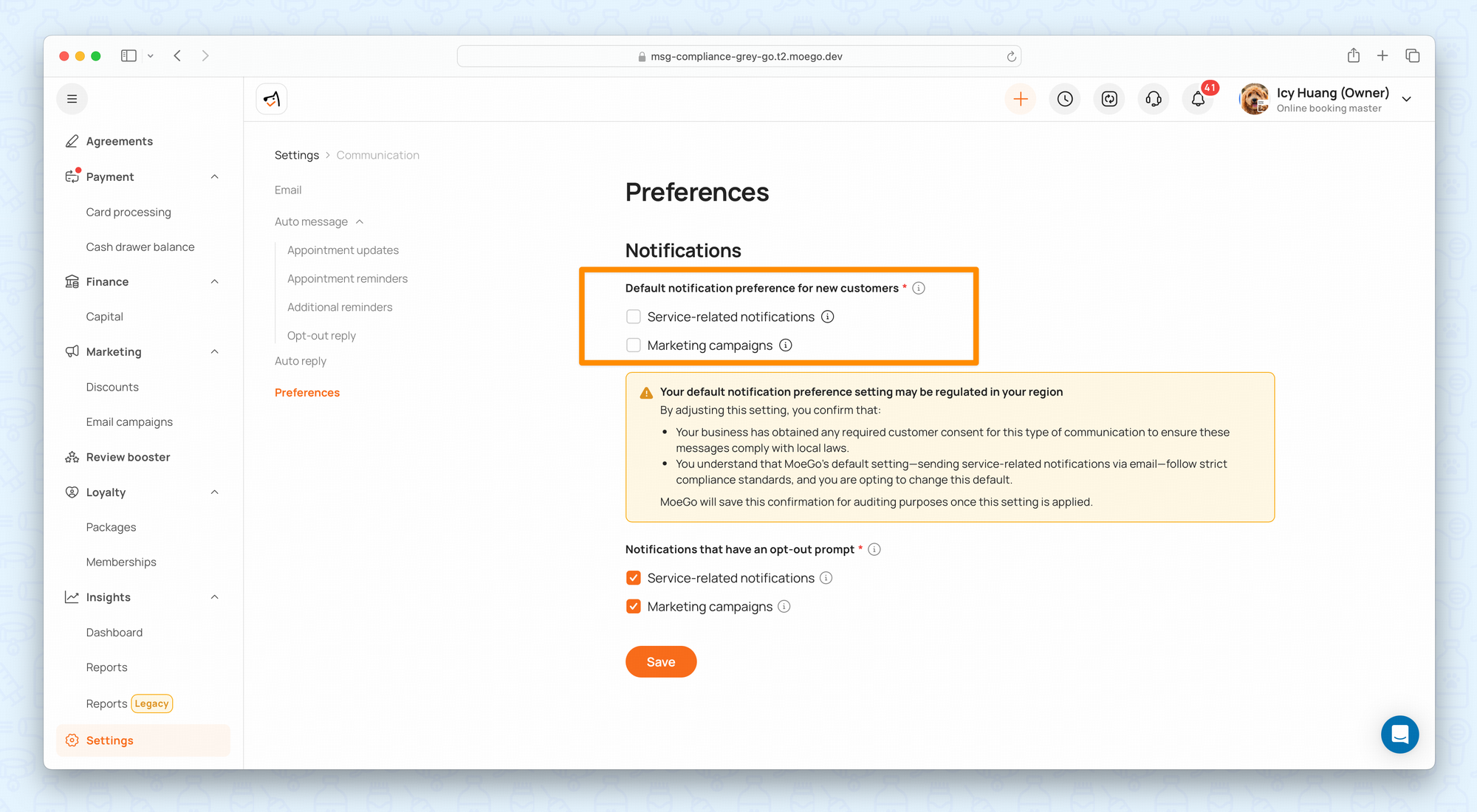
Your default notification preference setting may be regulated in your region
By adjusting this setting, you confirm that:
- Your business has obtained any required customer consent for this type of communication to ensure these messages comply with local laws.
- You understand that MoeGo's default setting—sending service-related notifications via email—follow strict compliance standards, and you are opting to change this default.
MoeGo will save this confirmation for auditing purposes once this setting is applied.
Business Manage Notification
The businesses can manage notification settings from multiple areas in MoeGo.
Adding a New Client or Lead
When creating a new client or lead profile, scroll to the Notification Settings section.
You have two ways to handle notification authorization:
Option 1: Record consent manually
- Set Notification Authorization to Completed
- (Optional) Upload authorization proof for your records
Use this option if you already have documented consent from the pet parent.


Option 2: Let the client complete authorization themselves
- Leave Notification Authorization as Incomplete
- After the profile is created, send a one-time SMS opt-in invitation
- The pet parent can review and update their notification preferences using the link in the message

Review default notification settings
Before saving the profile:
- Review the default settings for Service-related and Marketing-related messages
- If the pet parent agrees to receive additional messages, select SMS and/or Email accordingly
Updating an Existing Client or Lead
You can update notification preferences at any time, as long as client consent is obtained.
Updating an Existing Client
- Go to Client Profile → Settings → Notifications
- Send a one-time SMS opt-in invitation to have the client complete authorization
- Once completed, notification preferences will update automatically based on the client’s selection


Updating an Existing Lead
For leads, you can use either method below:
- Send a one-time SMS opt-in invitation for the lead to complete authorization, or
- Upload authorization documents and update preferences manually
To update manually:
- Go to the Lead Profile
- Click the Options button in the top-right corner
- Adjust notification preferences for service-related and marketing-related SMS/email


Best Practice Tip
Whenever possible, let pet parents complete their own notification preferences using the opt-in link.
This reduces manual work and provides a clear record of consent.
When Using the Intake Form
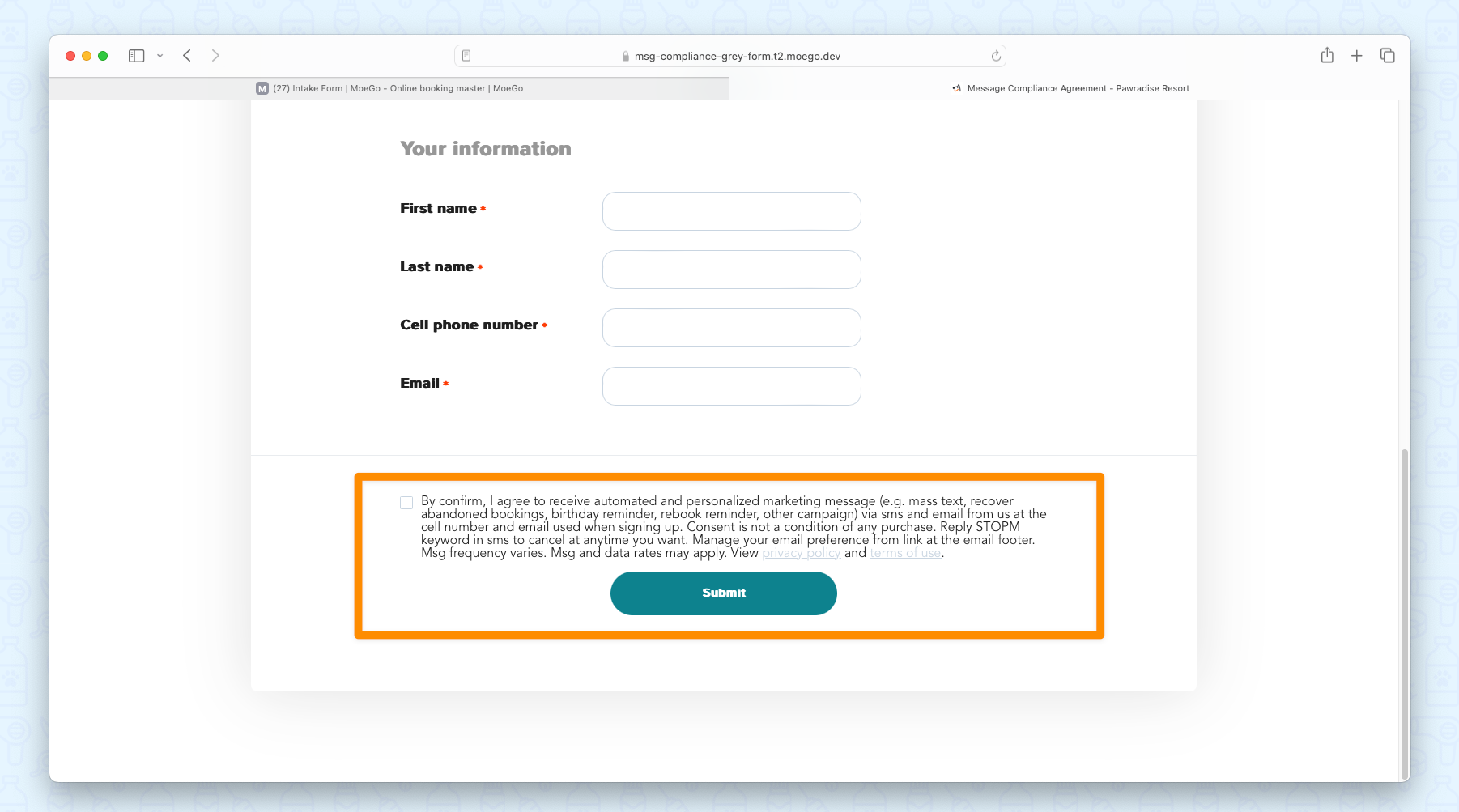
If you use intake forms to collect client information, you’ll find a Marketing Policy option in the form builder.
- Go to Intake Form.
- Create or edit a form.
- Locate the Marketing Policy toggle (Default ON).

Once enabled, this section appears as a consent checkbox for clients during form submission.
When a client agrees, MoeGo automatically updates their marketing preferences.
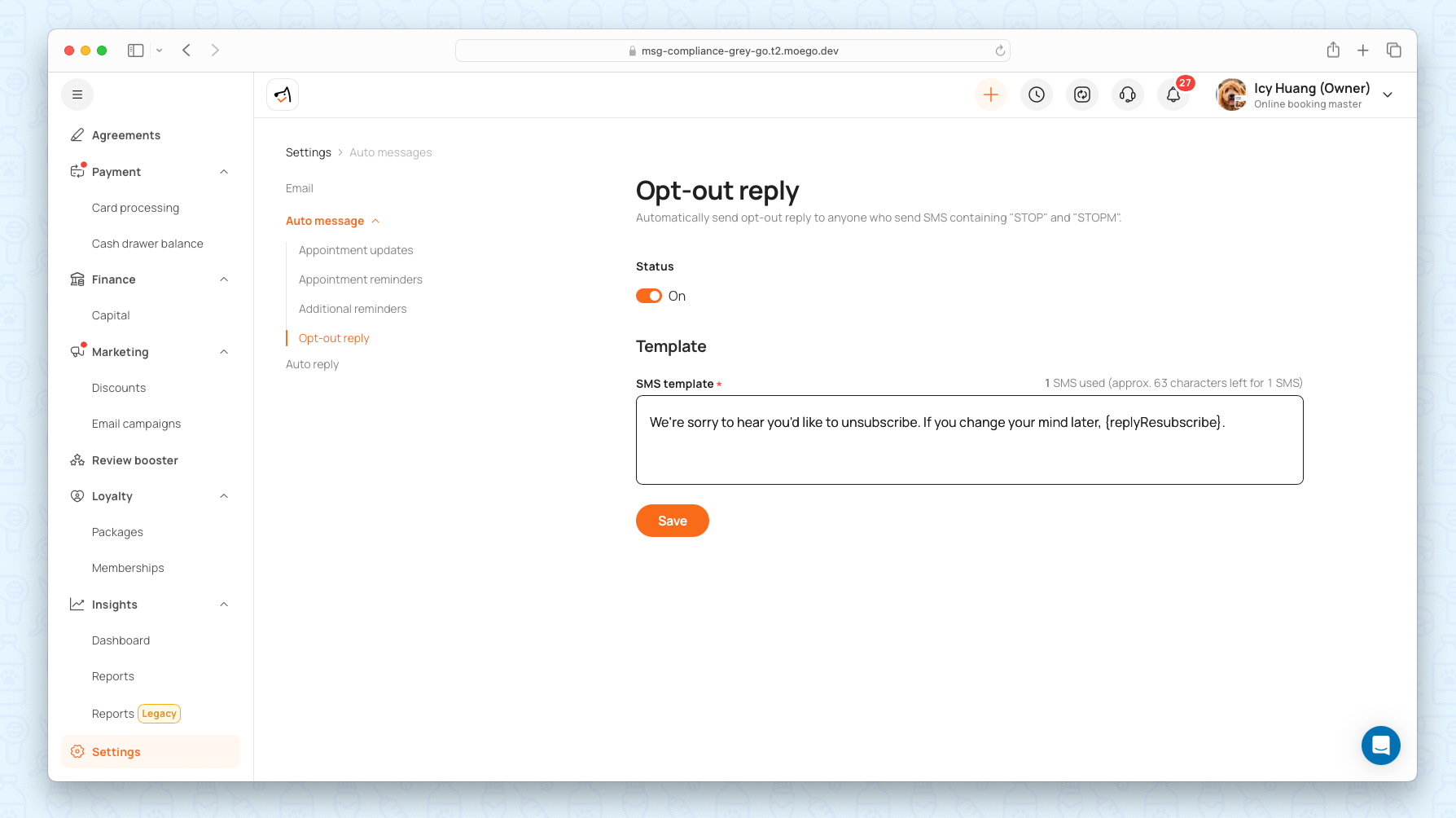
Company-wide Opt-out Reply Message
MoeGo allows you to set up a company-level opt-out reply. This message is automatically sent when a pet parent replies with “STOP” or “STOPM” to unsubscribe.
To configure:
- Go to Settings > Communication/Auto Messages.
- Open the Opt-out Reply Message tab.
- Customize your message to include the Resubscribe keyword (so clients can opt back in later).
This automatic reply consumes SMS credits as one-way message, confirming that the client’s opt-out request was received.
Pet Parents Manage Notification
Pet parents have full control over how they receive updates and marketing messages from your business.They can manage their notification preferences in several different ways.
When Reply via SMS
Clients can easily update their SMS preferences by replying with specific keywords:
- STOP — Unsubscribe from service-related SMS
- STOPM — Unsubscribe from marketing messages
- RESUBSCRIBE — Re-enable all SMS communications
The system automatically adds “Reply STOP to opt out” or “Reply STOPM to opt out” at the end of auto messages/reminders, so clients always have a clear way to opt out. Private messages sent via message center manually will not have keywords auto-added.
These SMS commands work instantly and don’t require any manual setup from your business.
This keyword (approximately 20 characters) counts toward the total SMS character limit. This may change how many SMS credits a message uses.
Some existing message templates may now consume more SMS credits than before. Please review all your SMS templates to prevent unnecessarily SMS used.
*If you’re on the Ultimate plan, the impact is much smaller, as unlimited auto-messages help offset the extra characters added for compliance.
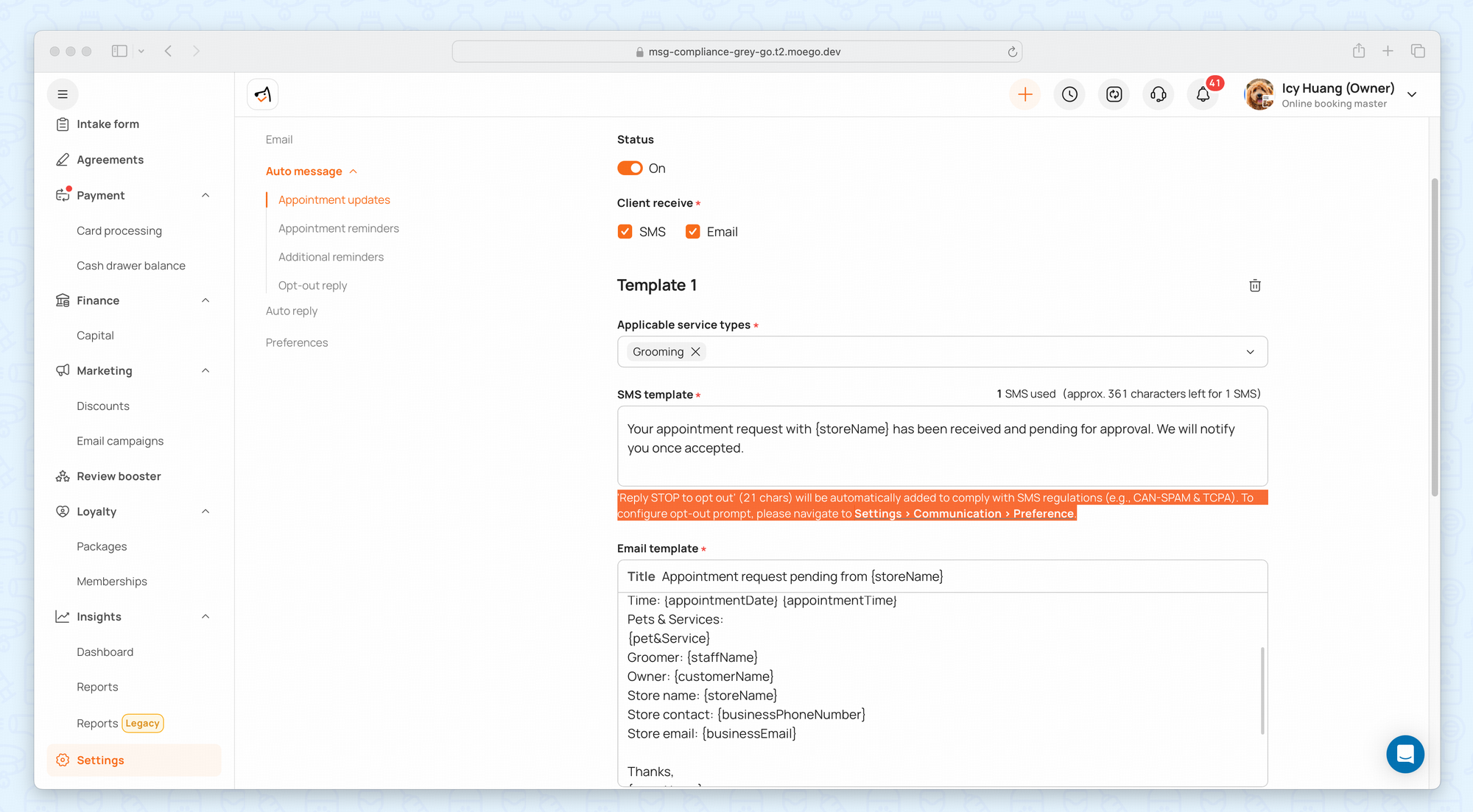
Managing Automatic SMS Opt-out Keywords
MoeGo allows you to manage whether opt-out prompts are added automatically for each message types.
Selected notification types will include an opt-out prompt at the end of each notification. This helps ensure compliance with regional communication regulations.
Per-channel settings:
- Service-related: default enabled
- Marketing: default enabled
When you close an option:
- A confirmation message will explain the regulatory responsibility.
- Future messages from that channel will not automatically insert the opt-out prompt.
🔒 Changes apply only to future SMS messages.

When Receive Emails
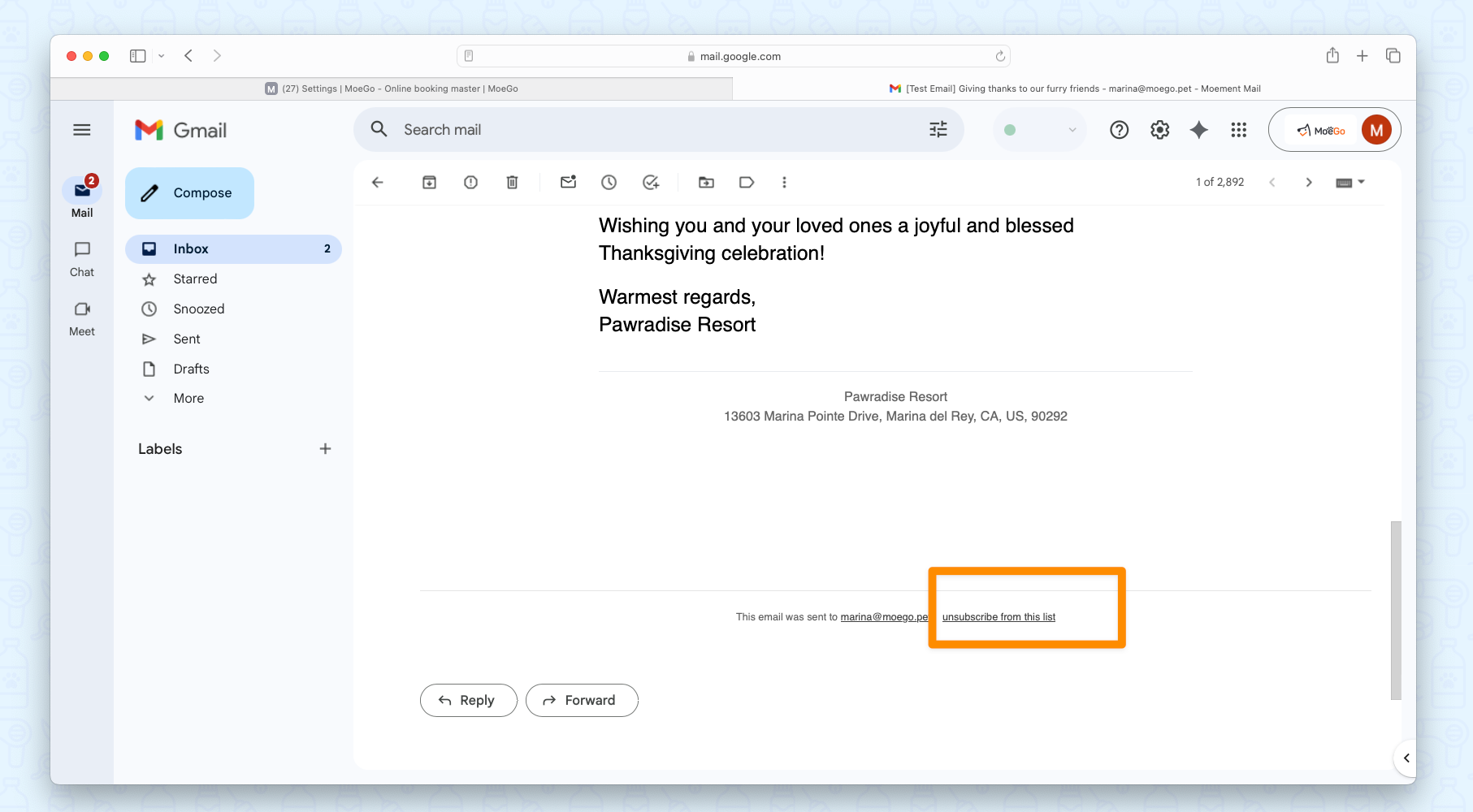
Every email sent through MoeGo includes an unsubscribe link at the bottom of the message.
Clients can click it anytime to stop receiving marketing or service emails.
🔎 Note: This link won’t appear in preview mode inside MoeGo but will be visible in the actual sent email.
When Submit an Intake Form
If you’ve enabled the Marketing Policy in your intake form settings, clients will see a checkbox to agree (or not) to receive marketing messages.
When they submit the form:
- Their marketing consent is automatically recorded.
- MoeGo updates their notification preferences accordingly.
💡 Each new submission overrides the previous preference, so the latest response always applies.
When Book Online
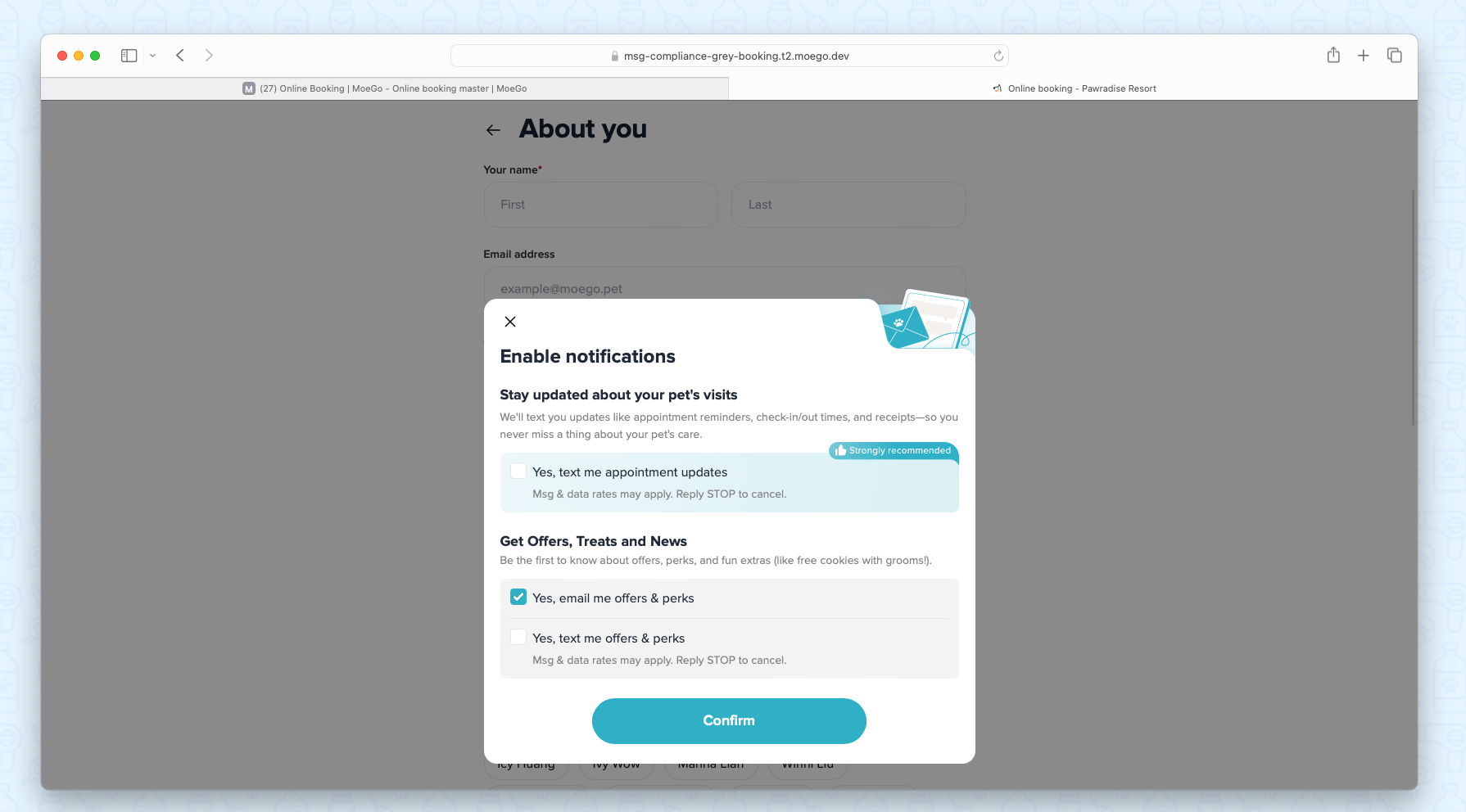
When pet parent first sign up via online booking portal, they will see the notification enablement pop-up, asking their permission to opt-in and their preference for communication method.
- It is their choice if not opt-in, they can continue with the booking process.
- MoeGo updates their notification preferences accordingly.
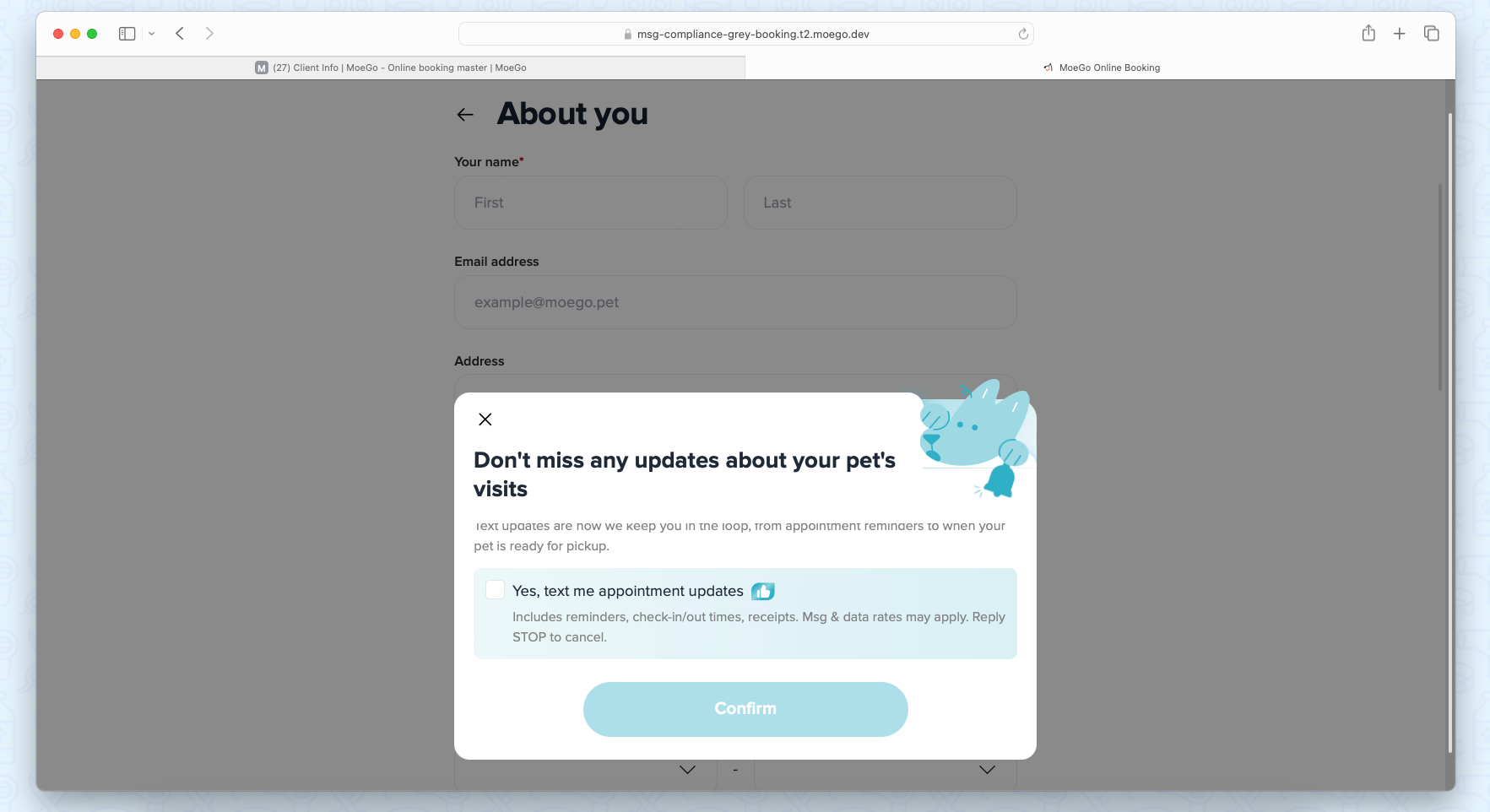
Specially, if they haven’t opted in to service-related SMS, MoeGo will automatically prompt them to do so after booking and before payment (once every 30 days).
This ensures clients don’t miss important updates like appointment confirmations, cancellations, or reminders.
In Client Portal or Branded App Account
Clients can adjust their communication preferences anytime from their MoeGo account.
- Go to Client Portal > Communication Settings, and update preference.
- Go to Branded App (Beta) > Communication Settings, and update preference.
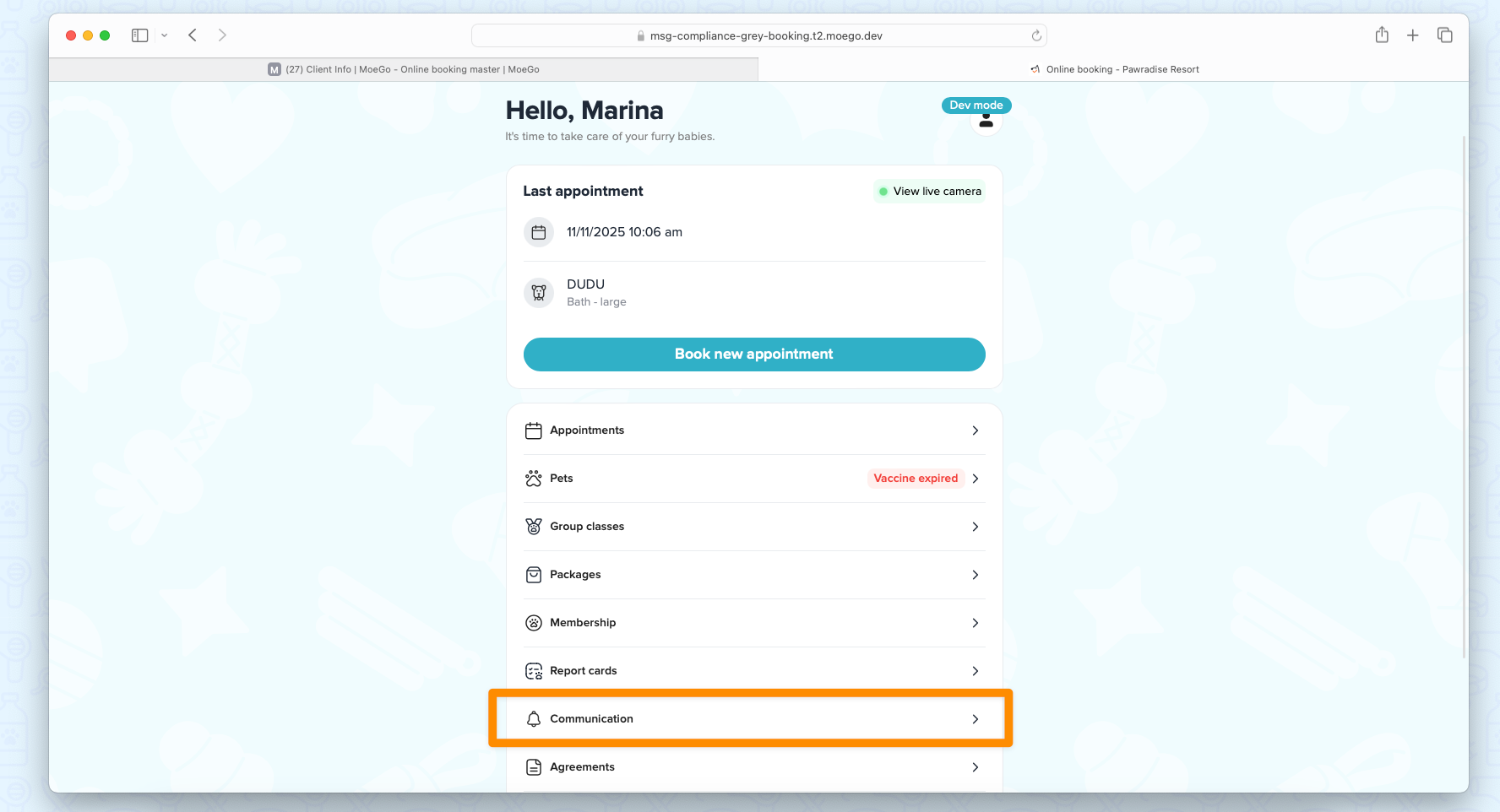
From there, they can toggle:
- Service-related notifications (SMS/Email)
- Marketing notifications (SMS/Email)
Changes made here apply immediately and sync across all MoeGo communication channels.

FAQ
Q: Why can’t I see the “STOP” or “STOPM” text in Message Center?
A: The opt-out phrase is automatically added by the system on the backend. You won’t see it in the Message Center preview, but it will appear in the actual message clients receive. You can test this by sending yourself a message.
Q: Why doesn’t my client see the “unsubscribe” link in their email preview?
A: The unsubscribe link only appears in the actual email delivered to clients, not in the preview shown inside MoeGo. You can send a test email to confirm it.
Q: My client texted “Stop please” but didn’t get unsubscribed — why?
A: The system only recognizes the exact keywords STOP, STOPM, or RESUBSCRIBE. This prevents accidental opt-outs from casual conversation. Keywords are not case-sensitive.
Q: What happens if a client submits multiple intake forms?
A: MoeGo always uses the most recent submission. The latest response determines whether the client is opted in or out of marketing messages.
Q: A client opted out by mistake — can they re-enable notifications?
A: Yes! They can simply reply “RESUBSCRIBE” to re-enable all SMS notifications or update their settings directly in the Client Portal or Branded App.
You can also enable the relevant notification setting in their profile, and mark the authorization as complete with "obtain written consent".
Q: Can I manually change a client’s notification preferences?
A: Yes, but you must always obtain explicit consent before making any changes, especially for the Marketing SMS notification. Compliance laws require that clients authorize updates to their own communication settings.
Q: What if clients aren’t receiving appointment reminders?
A: Check their notification preferences. If they’ve opted out of SMS and your reminders are text-only, they won’t receive them. We recommend enabling both Email and SMS to ensure clients get all important updates.
Q: Will my clients lose past settings after this update?
A: No. Existing settings automatically migrate to the new notification structure. MoeGo maps your old message preferences to the correct new categories — so you don’t need to redo anything manually.
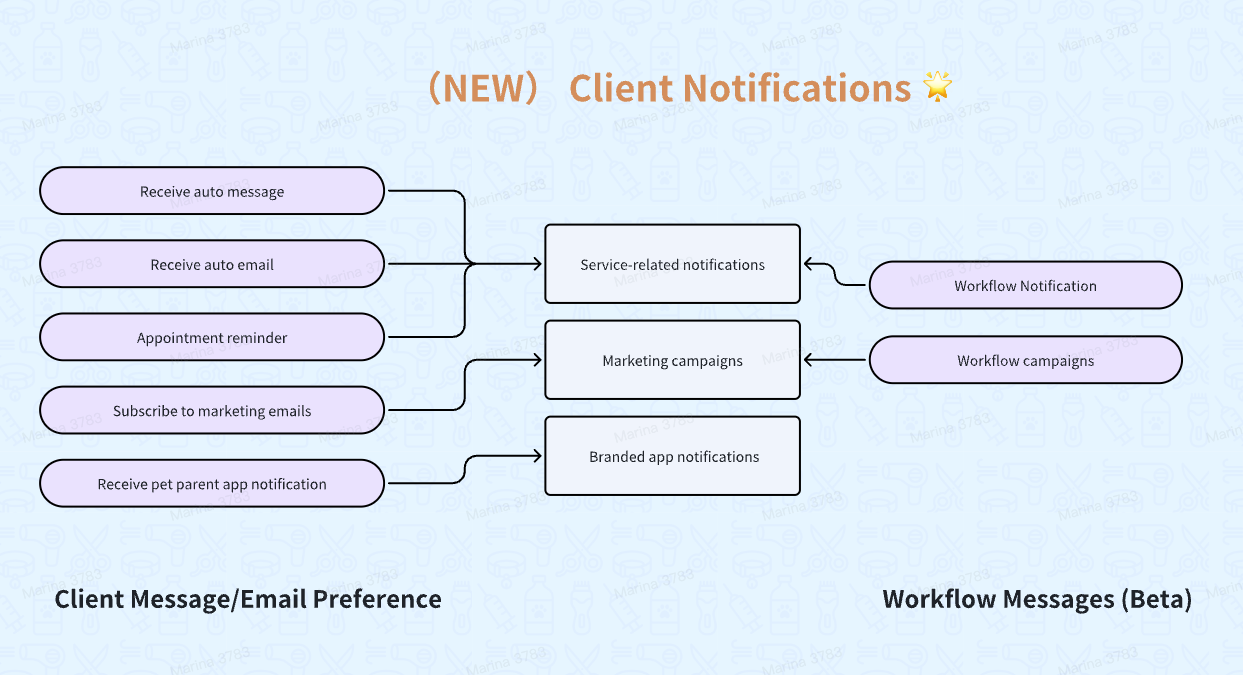
Q: What does service-related and marketing messages include?
A: all system-generated notifications are consolidated under one unified management system, divided into 2 notification types.
| Type | sub-function | SMS | Branded app | Autocall | |
| Verification code | - | ✅ | |||
| 2 way message | Private message: Message Chatbox | ✅not impacted by any notification setting | |||
| Service-related | Appointment updates: Auto message when new appointment is booked Auto message when appointment is rescheduled Auto message when appointment is marked as ready Auto message when appointment is cancelled Auto message when appointment is confirmed by client Auto message when appointment is cancelled by client | ✅ | ✅ | ✅ | |
| Payment Send receipt when a ticket is fully paid | ✅ | ✅ | ✅ | ||
| Appointment reminder: 1st reminder[unconfirmed appt only] 2nd reminder[unconfirmed appt only] General reminder[both confirmed and unconfirmed appt] | ✅ | ✅ | ✅ | ✅ | |
| Un-submitted card on file reminder | ✅ | ✅ | ✅ | ||
| Business Auto reply | ✅ | ||||
| Grooming Report | ✅ | ✅ | |||
| Send Invoice to Pay Online | ✅ | ✅ | |||
| Agreement Sent by Text | ✅ | ✅ | |||
| ETA message (System save reply) | ✅ | ||||
| missed call auto reply (set up on app) | ✅ | ||||
| Workflow notification | ✅ | ✅ | |||
| Marketing campaign | Mass text | ✅ | ✅ | ||
| Pet birthday reminder | ✅ | ✅ | ✅ | ||
| Rebook reminder | ✅ | ✅ | ✅ | ||
| Auto review booster | ✅ | ||||
| abandoned bookings schedule recovery message | ✅ | ||||
| Subscribe to marketing emails | ✅ | ||||
| Workflow campaign | ✅ | ✅ |
If you have questions about your notification settings or need assistance setting up compliance features, reach out to our Support Team.